
The Ultimate Guide to Defending Your Computer Against Malware
Malware is a persistent threat to computer users, capable of causing significant disruption, data loss, and financial damage. A proactive approach to computer security is essential for protecting personal and sensitive information. This guide outlines the core concepts of malware, prevention strategies, detection, removal, and recovery.
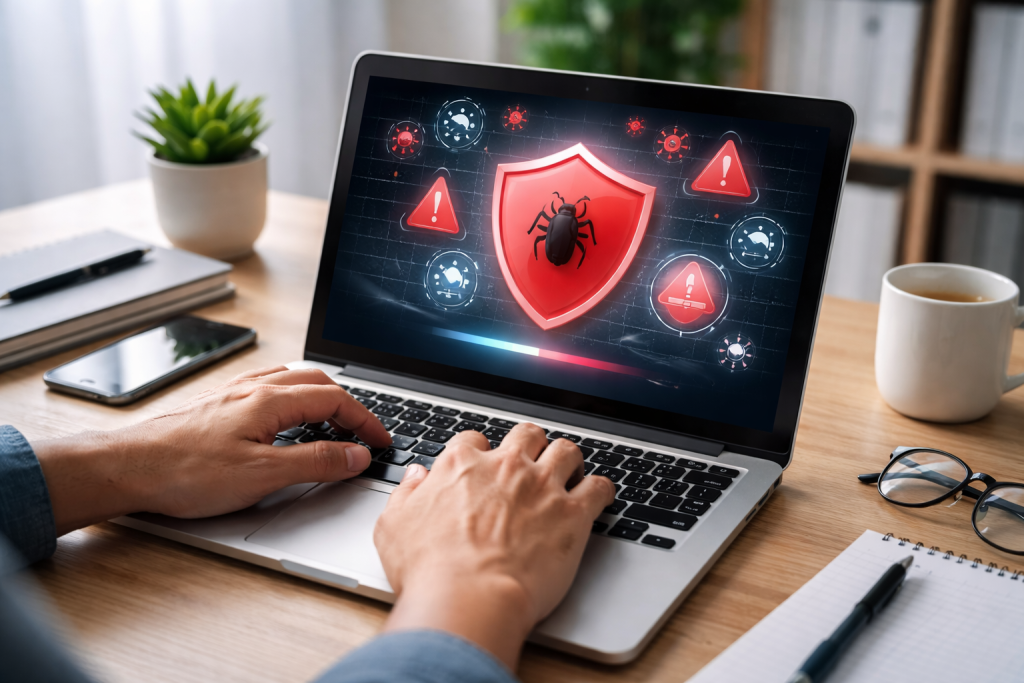
Malware, short for malicious software, is a broad term encompassing various types of harmful programs designed to infiltrate, damage, or gain unauthorized access to computer systems. These programs operate like unwelcome guests, often sneaking into your digital home with ill intentions.
Contents
- 0.1 Common Malware Categories
- 0.2 The Risks and Consequences of Malware Infections
- 0.3 Maintaining System Updates and Patches
- 0.4 Practicing Safe Browsing Habits
- 0.5 Managing Email and Download Security
- 0.6 Using Strong and Unique Passwords
- 0.7 Implementing Firewalls
- 0.8 Securing Wi-Fi Networks
- 0.9 Key Features to Look For
- 0.10 Free vs. Paid Antivirus Software
- 0.11 Warning Signs of a Malware Infection
- 0.12 Step-by-Step Malware Removal Process
- 0.13 Network Security Measures
- 0.14 User Account Control and Privileges
- 0.15 Data Backup and Recovery Strategies
- 0.16 Using a Virtual Machine for Risky Activities
- 0.17 Staying Informed About Emerging Threats
- 0.18 Teaching Safe Practices to Family and Friends
- 0.19 Recognizing Phishing and Social Engineering
- 0.20 Assessing the Damage
- 0.21 Restoring Data from Backups
- 0.22 Reinstalling Operating System and Applications
- 0.23 Changing Passwords
- 0.24 Monitoring Financial Accounts
- 0.25 Seeking Professional Assistance
- 1 FAQs
- 1.1 1. What is malware and what are the different types of malware?
- 1.2 2. What are the risks associated with malware infections?
- 1.3 3. What are the best practices for preventing malware infections?
- 1.4 4. How do you choose the right antivirus software for your computer?
- 1.5 5. How can you recognize and remove malware from your computer?
Common Malware Categories
- Viruses: These are self-replicating programs that attach themselves to legitimate files. When the host file is executed, the virus also runs, spreading to other files and potentially causing system damage or data corruption. Think of a virus like a biological virus that infects a healthy cell and forces it to make more copies of itself.
- Worms: Unlike viruses, worms are standalone malicious programs that can replicate and spread independently across networks. They often exploit vulnerabilities in operating systems or software to propagate, consuming bandwidth and overloading systems. Worms are like a contagious disease that spreads rapidly from one person to another without needing a direct carrier.
- Trojans (Trojan Horses): These programs disguise themselves as legitimate or desirable software to trick users into installing them. Once installed, they can perform various malicious actions, such as stealing data, creating backdoors for remote access, or downloading other malware. A Trojan is like the ancient Greek story where a seemingly innocent gift hides a dangerous secret.
- Ransomware: This type of malware encrypts a victim’s files or locks them out of their system, demanding a ransom payment, typically in cryptocurrency, to restore access. Ransomware attacks can cripple businesses and individuals, leaving them with a stark choice: pay the ransom or lose access to their data permanently.
- Spyware: Spyware is designed to secretly monitor and collect information about a user’s activities, including browsing habits, keystrokes, and login credentials. This stolen information can then be used for identity theft or sold to third parties. Spyware is like a hidden camera and microphone recording your every move.
- Adware: While often less destructive than other forms of malware, adware displays unwanted advertisements, which can be extremely disruptive. Some adware can also track user behavior for targeted advertising purposes. Adware is like a persistent salesperson who won’t leave you alone and keeps flashing advertisements.
- Rootkits: These are designed to conceal the presence of other malware or malicious activities on a system. Rootkits can operate at a very low level, making them difficult to detect and remove. They are like the master of disguise, making it hard to see what they are trying to hide.
The Risks and Consequences of Malware Infections
The risks associated with malware are multifaceted. At a personal level, individuals can face identity theft, financial loss through unauthorized transactions, and the compromise of private photos or documents. Data loss can be a significant consequence, with systems becoming unusable or critical files becoming inaccessible. For businesses, malware infections can lead to operational downtime, reputational damage, legal liabilities, and substantial financial costs for recovery and remediation. The spread of malware can also have broader societal impacts, affecting critical infrastructure and public services.
Preventing malware infections is often more effective and less costly than dealing with the aftermath of an attack. Implementing a layered security approach forms the bedrock of robust defense.
Maintaining System Updates and Patches
Software developers regularly release updates and patches to fix security vulnerabilities that malware can exploit. Keeping your operating system, web browsers, and all installed applications up to date is crucial. These updates are like reinforcing the weak points in your digital fortress, preventing unwelcome breaches. Just as a house needs regular maintenance to prevent structural damage, your computer needs these updates to stay secure. Neglecting these updates is like leaving the doors and windows of your home unlocked and unguarded.
Practicing Safe Browsing Habits
Be judicious about the websites you visit and the content you download. Avoid clicking on suspicious links in emails, social media, or unsolicited pop-up windows. These can be gateways for malware, masquerading as legitimate offers or important notifications. Think of each suspicious link as a potential trap laid out in your digital environment. Instead of taking the bait, exercise caution and verify the source of any information or download before proceeding.
Managing Email and Download Security
Email attachments from unknown senders are a common vector for malware. Exercise extreme caution when opening attachments, even if they appear to come from a known contact, as their account may have been compromised. Similarly, only download software from trusted and reputable sources. Pirated software or files downloaded from unofficial websites are often bundled with malware. This is akin to accepting packages from unknown sources at your doorstep; it’s a gamble with your security.
Using Strong and Unique Passwords
Weak or reused passwords are like giving attackers a master key to your digital life. Employ strong, unique passwords for all your online accounts and computer logins. Consider using a password manager to generate and store complex passwords securely. A strong password acts as a formidable lock on your digital vault, protecting your sensitive information.
Implementing Firewalls
A firewall acts as a barrier between your computer or network and the internet, monitoring incoming and outgoing traffic. It can block unauthorized access attempts and prevent malicious software from communicating with external servers. Your firewall is like a vigilant security guard at the entrance of your property, scrutinizing everyone who tries to enter.
Securing Wi-Fi Networks
Public Wi-Fi networks can be unsecured and vulnerable to interception. Avoid accessing sensitive information, such as banking or shopping sites, when connected to public Wi-Fi. For home networks, ensure your Wi-Fi is password-protected with a strong encryption protocol like WPA2 or WPA3. An unsecured Wi-Fi network is like leaving your front door wide open in a busy neighborhood.
Antivirus software is a fundamental component of any computer security strategy. It acts as your digital immune system, detecting, preventing, and removing malware.
Key Features to Look For
When selecting antivirus software, consider the following essential features:
- Real-time Protection: This feature constantly monitors your system for malicious activity, stopping threats before they can cause damage. It’s like having a bodyguard always by your side, ready to intervene at the first sign of danger.
- Malware Scanning and Removal: The software should be capable of performing thorough scans of your system to detect existing malware and effectively remove it. This is the diagnostic tool that identifies and eliminates infections.
- Automatic Updates: Antivirus definitions, which are the database of known malware signatures, need to be updated regularly. Ensure the software provides automatic updates to stay protected against the latest threats. This is akin to ensuring your doctor has the latest knowledge to combat new diseases.
- Firewall Integration: Some antivirus suites include a built-in firewall, offering a more comprehensive security solution.
- Ransomware Protection: Given the prevalence of ransomware attacks, specific features designed to detect and block ransomware behavior are increasingly important.
- User-Friendly Interface: The software should be easy to navigate and understand, allowing you to manage your security settings without difficulty.
Free vs. Paid Antivirus Software
Free antivirus programs can offer a basic level of protection and are a viable option for users with minimal security needs. However, paid antivirus solutions generally provide more advanced features, better detection rates, dedicated customer support, and more frequent updates. The decision often comes down to your specific needs, the sensitivity of the data you handle, and your budget. Think of free antivirus as a simple lock on your door, while paid antivirus is a state-of-the-art security system with multiple layers of protection.
Recognizing the signs of a malware infection is the first step toward resolving the issue. Prompt action is crucial to minimize potential damage.
Warning Signs of a Malware Infection
Several indicators can suggest your computer may be infected with malware:
- Unusual Slowdowns: If your computer suddenly becomes sluggish, takes a long time to start up, or applications run slowly, it could be a sign that malware is consuming system resources. This is like your body suddenly feeling fatigued and sluggish due to an unseen illness.
- Unexpected Pop-ups and Advertisements: Seeing a surge of intrusive pop-up ads, especially on websites where you don’t normally see them, can indicate adware.
- Crashing or Freezing: Frequent system crashes, blue screen errors, or applications freezing without reason can be a symptom of malware interfering with system operations.
- Unfamiliar Programs or Toolbars: The appearance of new, unasked-for programs, browser toolbars, or homepage changes suggests a potential infection.
- Increased Network Activity: A sudden and unexplained increase in internet activity, even when you’re not actively using bandwidth-intensive applications, could indicate malware communicating with external servers.
- Antivirus Software Disabled: If your antivirus software is suddenly disabled and you cannot re-enable it, malware might be actively trying to shut down your defenses to operate undetected.
- Files Being Deleted or Modified: The mysterious disappearance or alteration of your files is a serious red flag, often associated with viruses or ransomware.
Step-by-Step Malware Removal Process
- Disconnect from the Internet: To prevent malware from spreading further or communicating with its controller, disconnect your computer from the internet. This is like isolating a sick patient to prevent further contagion.
- Enter Safe Mode: Restart your computer in Safe Mode. This mode loads only essential system files and drivers, which can prevent malware from running and make it easier to remove.
- Run a Full Antivirus Scan: Use your installed antivirus software to perform a complete system scan. Ensure your antivirus definitions are up to date before initiating the scan.
- Use a Second Opinion Scanner: Consider downloading and running a scan with a reputable on-demand malware scanner from a different vendor. Sometimes, one antivirus program might miss threats that another can detect. This is like getting a second medical opinion to confirm a diagnosis.
- Remove Detected Malware: Follow the instructions provided by your antivirus software to quarantine or remove any detected threats.
- Check System Startup Items: Malware often configures itself to run automatically when your computer starts. Use system configuration tools (like
msconfigin Windows) to review and disable any suspicious startup programs. - Clean Browser Cache and Cookies: Malware can sometimes hide in browser data. Clearing your browser’s cache, cookies, and temporary files can help remove residual traces.
- Restart Your Computer: After the removal process, restart your computer normally.
- Run Another Antivirus Scan: Perform another full scan to ensure all remnants of the malware have been eradicated.
- Update Software and Reconnect: Once you are confident that the malware has been removed, update all your software and reconnect to the internet.
Beyond installing antivirus software, several broader strategies enhance the security of your computing environment.
Network Security Measures
- Secure Your Router: Your home router is the gateway to your network. Ensure it is password-protected with a strong password and that you have changed the default administrator login credentials. Regularly check for firmware updates for your router.
- Use a VPN: A Virtual Private Network (VPN) encrypts your internet traffic, making it more secure, especially when using public Wi-Fi. It adds a layer of privacy and protection, like a secure tunnel for your data.
- Segment Your Network: For larger or more sensitive networks, consider segmenting them into smaller zones. This can limit the spread of malware if one segment is compromised.
User Account Control and Privileges
Operating systems employ User Account Control (UAC) or similar mechanisms to prevent unauthorized changes to your system. Run your computer with a standard user account for everyday tasks and only use administrator privileges when necessary for installing software or making system-wide changes. This minimizes the potential damage a piece of malware can inflict if it gains access through a lower-privilege account.
Data Backup and Recovery Strategies
Regularly backing up your important data is a critical safeguard against data loss caused by malware. Store backups on an external hard drive or a secure cloud storage service. Ensure your backup solution is automated to prevent oversight. This is your safety net, ensuring that even if the worst happens, you can restore your essential information.
Using a Virtual Machine for Risky Activities
For activities that inherently carry a higher risk, such as downloading and testing unknown software or visiting potentially dubious websites, consider using a virtual machine. A virtual machine is an isolated environment within your operating system. If malware infects the virtual machine, it generally won’t affect your main operating system, allowing you to experiment without jeopardizing your primary system.
Knowledge is a powerful weapon in the fight against malware. Staying informed about current threats and educating those around you amplifies your collective defense.
Staying Informed About Emerging Threats
The landscape of malware is constantly evolving, with new threats emerging regularly. Follow reputable cybersecurity news sources and blogs to stay updated on the latest malware trends, vulnerabilities, and attack methods. Understanding how attackers operate helps you anticipate and defend against their tactics.
Teaching Safe Practices to Family and Friends
Share your knowledge about cybersecurity with family members and friends. Explain the importance of strong passwords, safe browsing, and being wary of suspicious links and attachments. A digitally savvy community is a more secure community. Encourage them to take their online safety as seriously as they take their physical safety.
Recognizing Phishing and Social Engineering
Many malware attacks rely on deception, known as phishing or social engineering. Educate yourself and others on how to identify these tactics. Phishing emails often impersonate legitimate organizations, asking for personal information or urging users to click malicious links. Social engineering exploits human psychology to gain access or information. Be skeptical of unsolicited requests for sensitive data or urgent demands for action. These are like cunning con artists trying to trick you out of your valuables.
Even with the best prevention strategies, a malware infection can sometimes occur. Knowing how to recover effectively is as important as preventing the attack in the first place.
Assessing the Damage
After removing the malware, it’s important to assess the extent of the damage. Check if any personal files have been compromised, if financial information has been leaked, or if system functionality has been significantly impaired.
Restoring Data from Backups
If critical data was lost or encrypted, your most reliable method of recovery is from a recent backup. Ensure your backup is clean and free from any malware before restoring it. This is where the foresight of having a backup system pays off.
Reinstalling Operating System and Applications
In severe cases, the safest and most thorough way to ensure your system is clean is to perform a clean installation of your operating system. This erases everything on your drive, starting with a fresh slate. You will then need to reinstall your applications. While this can be time-consuming, it guarantees that any deeply embedded malware or system corruption is eradicated.
Changing Passwords
After a significant malware incident, especially if data theft or compromise is suspected, it is crucial to change all your passwords immediately. Prioritize critical accounts like banking, email, and social media. This is like changing the locks on your house after a break-in.
Monitoring Financial Accounts
If you suspect your financial information may have been compromised, closely monitor your bank statements and credit card activity for any unauthorized transactions. Report any suspicious activity to your financial institution immediately.
Seeking Professional Assistance
If you are unsure about any step of the recovery process, or if the infection is particularly complex, consider seeking assistance from a qualified IT security professional. They have the expertise and tools to diagnose and resolve even the most challenging malware issues.
FAQs
1. What is malware and what are the different types of malware?
Malware, short for malicious software, is a term used to describe any software designed to cause damage to a computer, server, or network. There are various types of malware, including viruses, worms, Trojans, ransomware, spyware, adware, and rootkits.
2. What are the risks associated with malware infections?
Malware infections can lead to a range of risks, including data theft, financial loss, identity theft, system damage, and disruption of operations. Malware can also be used to gain unauthorized access to a computer or network, allowing attackers to carry out further malicious activities.
3. What are the best practices for preventing malware infections?
Some best practices for preventing malware infections include keeping software and operating systems up to date, using strong and unique passwords, being cautious of email attachments and links, avoiding suspicious websites, using a reputable antivirus software, and regularly backing up important data.
4. How do you choose the right antivirus software for your computer?
When choosing antivirus software, it’s important to consider factors such as the software’s detection rate, system performance impact, features offered, customer support, and compatibility with your operating system. It’s also recommended to choose a reputable and well-established antivirus vendor.
5. How can you recognize and remove malware from your computer?
Signs of a malware infection include slow performance, unexpected pop-up windows, changes to browser settings, and unusual network activity. To remove malware, you can use antivirus software to scan and remove the malicious files, or seek assistance from a professional if the infection is severe.

Sarah Khan is a technology enthusiast and the admin of ProTechTuto. Her goal is to provide clear, practical, and easy-to-understand tech guides for beginners, helping them build strong digital skills with confidence.