
Unlocking the Power of Your PC: Installing Software on Windows Made Simple
Software is the soul of your computer. Without it, your PC is an inert shell, a collection of hardware waiting for instructions. Installing software is the process of furnishing your computer with these instructions, enabling it to perform tasks ranging from browsing the internet to creating complex documents or editing videos. Understanding this fundamental process empowers you to transform your PC from a bare machine into a versatile tool tailored to your needs. This article guides you through the process of software installation on Windows, offering practical advice and troubleshooting tips.
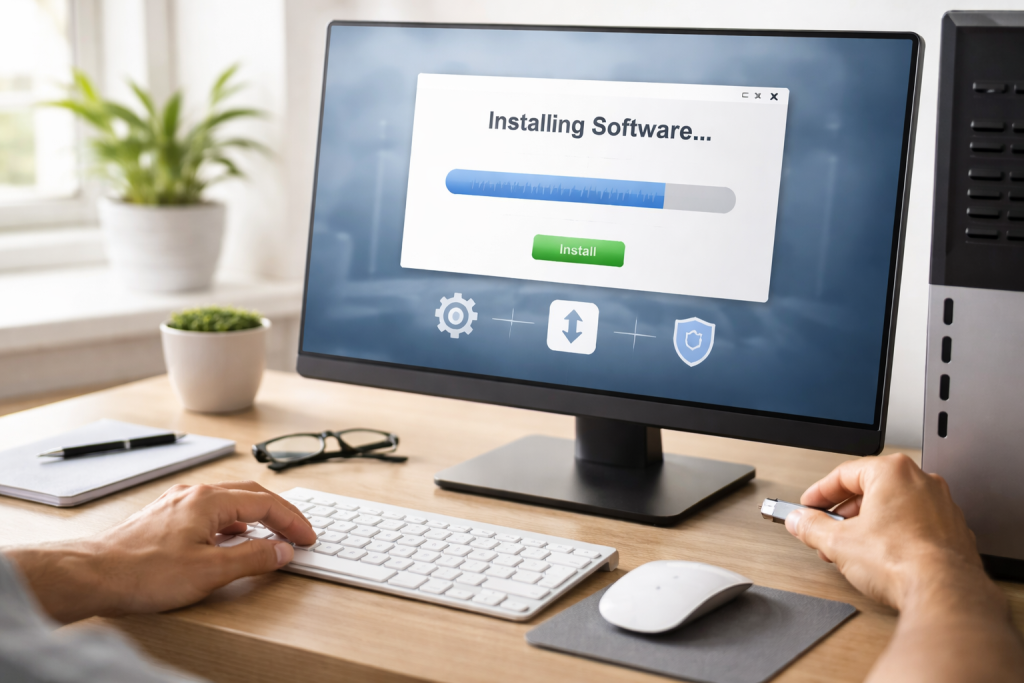
Software installation is more than just clicking a button; it involves placing program files onto your computer’s storage, integrating them with the operating system, and often configuring settings for initial use. Imagine your PC as a new house. The operating system serves as the foundation and walls of your computer. Software installation is like bringing in furniture, appliances, and decorations. Each piece of furniture (software) serves a purpose, adding functionality and comfort to your digital dwelling.
Contents
- 0.1 The Purpose of Installation Files
- 0.2 Different Installation Methods
- 0.3 Assessing Your Needs
- 0.4 Researching Software Options
- 0.5 Considering Software Licensing
- 0.6 Obtaining the Software
- 0.7 Running the Installer
- 0.8 Following the Installation Wizard
- 0.9 Completing the Installation
- 0.10 Installation Failure Messages
- 0.11 Frozen Installation or Computer Crashes
- 0.12 Software Not Launching After Installation
- 0.13 The Role of System Resources
- 0.14 Identifying Unnecessary Software
- 0.15 Utilizing Software for Optimization
- 0.16 The Microsoft Store
- 0.17 Package Managers (e.g., Chocolatey, Winget)
- 0.18 Portable Applications
- 0.19 Built-in Windows Features for Software Management
- 0.20 Verifying Software Sources
- 0.21 Reading Permissions and Terms
- 0.22 Using Antivirus Software
- 0.23 Sandboxing and Virtual Machines
- 1 FAQs
- 1.1 1. What is the importance of software installation on a Windows PC?
- 1.2 2. How can I choose the right software for my PC?
- 1.3 3. Can you provide a step-by-step guide to installing software on Windows?
- 1.4 4. What are some common software installation issues, and how can they be troubleshooted?
- 1.5 5. How can I ensure security and privacy when installing software on my Windows PC?
The Purpose of Installation Files
When you download software, you typically receive an installer file. This file acts as a delivery person, containing all the components the program needs. It unpacks these components, placing them in the correct directories on your hard drive, registering them with the operating system, and creating necessary shortcuts. This procedure ensures the program can access the resources it needs to run and that Windows knows how to launch and manage it.
Different Installation Methods
Software can be installed in several ways. The most common is through an executable installer package (often with an .exe or .msi extension). These installers guide you through the process step-by-step. Other methods include using package managers, which automate the download and installation of multiple programs, or simply extracting compressed files for portable applications that don’t require a formal installation process. Each method has its advantages, largely depending on the software’s complexity and your preference.
Just as you wouldn’t fill your house with random items, selecting the right software for your PC is crucial. Choosing well-reputed applications ensures functionality, security, and compatibility.
Assessing Your Needs
Before you begin your search, identify what you want your computer to do. Do you need a word processor, a video editor, a gaming client, or a specific tool for a professional task? Clearly defining your requirements will narrow down your options significantly. This prevents cluttering your system with unnecessary programs, which can eventually impact performance.
Researching Software Options
Once you know your needs, research available software. Look for reviews from reputable tech websites, user forums, and official developer pages. Pay attention to compatibility with your Windows version, system requirements (RAM, processor, storage), and any known bugs or performance issues. Free software can be a beneficial option, but always verify its source and reputation to avoid malicious downloads. Paid software often comes with professional support and more features.
Considering Software Licensing
Software comes with various licensing agreements. Some are commercial, requiring a one-time purchase or a subscription. Others are open-source, meaning their code is publicly available and often free to use and modify. Freeware is free to use but typically has a proprietary code. Understand the licensing terms before committing, as they dictate how you can use, distribute, and modify the software.
Installing software on Windows generally follows a predictable path. Following these steps ensures a smooth and successful installation.
Obtaining the Software
The first step is to acquire the software. This usually involves downloading an installer from the developer’s official website or a trusted software distribution platform. Be wary of unofficial download sites, as they may bundle legitimate software with unwanted programs or malware. For applications from the Microsoft Store, simply navigate to the store, search for the application, and click “Install.”
Running the Installer
Once downloaded, locate the installer file, typically in your “Downloads” folder. Double-click the file to launch it. Windows may prompt you with a User Account Control (UAC) dialog, asking for permission to make changes to your device. This dialog is a security feature; always confirm that the program attempting to install is one you initiated. If you’re unsure, do not proceed.
Following the Installation Wizard
Most installers use a wizard interface to guide you. This typically involves several steps:
- Welcome Screen: Introduces the software and the installation process.
- License Agreement: This is the End-User License Agreement (EULA). Read it if you wish, then accept to proceed.
- Destination Folder: The wizard will suggest a default installation location (usually within “Program Files”). For most users, accepting the default is fine. Advanced users might choose a different drive or folder.
- Component Selection: Some software allows you to choose which components to install (e.g., core program, optional plugins, desktop shortcuts). Deselecting unnecessary components can save disk space.
- Additional Options: You might be asked if you want to create a desktop shortcut, a Start Menu entry, or whether the program should launch after installation.
- Final Review and Installation: The wizard typically presents a summary of your choices before beginning the file transfer and configuration process.
Completing the Installation
Once the files are copied and configured, the wizard will inform you that the installation is complete. Some programs may need a computer restart to fully integrate with the OS. If not prompted, you can usually start using the software immediately.
Even with careful steps, installations can sometimes encounter roadblocks. Knowing how to troubleshoot these issues can save time and frustration.
Installation Failure Messages
Error messages during installation can provide clues. Common messages include “Insufficient Disk Space,” “File Not Found,” “Access Denied,” or “Corrupted Installer.”
- Insufficient Disk Space: Check your drive space and free up some if necessary.
- File Not Found/Corrupted Installer: Redownload the installer, ensuring your internet connection is stable. A corrupted download can lead to such errors.
- Access Denied: Run the installer as an administrator. Right-click the installer file and select “Run as administrator.” This often resolves permission-related issues.
- Compatibility Issues: Ensure the software is compatible with your version of Windows (e.g., 64-bit software on a 64-bit OS). Check the software’s system requirements.
Frozen Installation or Computer Crashes
If the installation process freezes or causes your computer to crash, it could be a resource issue or a conflict with other software.
- Close Other Programs: Before installing, close all other running applications. This frees up RAM and CPU resources and reduces potential conflicts.
- Disable Antivirus (Temporarily): Your antivirus software might sometimes interfere with installations, mistaking legitimate actions for malicious ones. Temporarily disable it during installation, but remember to re-enable it immediately afterward. Exercise caution with this step, only doing it if you are certain the software source is trustworthy.
- Update Drivers: Outdated device drivers can sometimes cause system instability. Ensure your graphics drivers and chipset drivers are current.
Software Not Launching After Installation
You’ve installed the software, but it won’t open. This can be frustrating.
- Restart Your PC: A simple restart can often resolve minor conflicts or pending integrations.
- Check System Requirements: Double-check that your PC meets the minimum requirements for the software.
- Reinstall the Software: A clean reinstallation can sometimes fix issues if the initial installation was incomplete or corrupted.
- Check Event Viewer: Windows’ Event Viewer (search for it in the Start Menu) records system events and errors. Look for entries related to the software that failed to launch; these can provide specific error codes or details for further investigation.
Software installation isn’t a one-time event. Managing your installed applications effectively contributes to a well-performing and organized system.
The Role of System Resources
Every piece of software consumes system resources: CPU, RAM, and storage. Over-installing applications, especially those that run in the background, can slow down your computer significantly. Think of your PC’s resources as a limited pie. Each program takes a slice. Too many slices, and not much is left for core functions.
Identifying Unnecessary Software
Periodically review your installed programs. Uninstall apps you haven’t used in months or that you only installed for one task. Go to Settings > Apps & features to see a list of installed programs. Uninstalling frees up disk space and reduces background processes.
Utilizing Software for Optimization
Paradoxically, some software is designed to optimize your PDisk cleanup tools, defragmentation utilities (for HDDs), and system monitors, which can help maintain health. However, be discerning; not all “PC optimizer” software is beneficial. Often, built-in Windows tools are sufficient.
Windows offers various ways to install and manage software beyond the traditional installer.
The Microsoft Store
The Microsoft Store is an integrated platform for apps specific to Windows. These apps are generally more streamlined, update automatically, and run in a sandboxed environment, which enhances security. Installing from the store is simple: find the app and click “Install.”
Package Managers (e.g., Chocolatey, Winget)
For more advanced users, package managers like Chocolatey and Microsoft’s own Winget provide a command-line interface for installing, updating, and managing software. These can automate installations, making it efficient to set up a new system or keep multiple programs current with a single command. They act like a digital librarian, quickly finding and installing what you request.
Portable Applications
Some smaller programs are “portable,” meaning they don’t require formal installation. You simply download a compressed file, extract its contents to a folder (even on a USB drive), and run the executable. These programs leave no traces in the Windows registry, making them lightweight and ideal for temporary use or specific tasks without cluttering your system. They are like self-contained toolkits.
Built-in Windows Features for Software Management
Windows provides tools to manage your installed software. The “Apps & features” section in Settings allows you to uninstall programs, modify installations, or view advanced options. The Task Manager (Ctrl+Shift+Esc) can reveal background processes and resource consumption, helping identify resource-intensive applications.
The digital landscape has risks. Exercising caution during software installation is a critical defense against malware and privacy breaches.
Verifying Software Sources
Always download software from the developer’s official website or a trusted app store (like the Microsoft Store). Avoid questionable download sites that bundle software with unwanted extras or malicious code. A legitimate executable will often be digitally signed by the developer; you can check this by right-clicking the installer, selecting “Properties,” and looking at the “Digital Signatures” tab.
Reading Permissions and Terms
During installation, pay attention to the permissions the software requests and the terms of service. Does a simple calculator program really need access to your contacts or webcam? Be wary of applications requesting excessive, unrelated permissions. While many users click “Next” without reading, a few moments spent here can prevent later issues.
Using Antivirus Software
A robust antivirus program is your first line of defense. Keep it updated and perform regular scans. It can detect and block malicious installers or components. Even with an antivirus, maintain good digital hygiene by sourcing software carefully.
Sandboxing and Virtual Machines
For testing potentially untrustworthy software or for applications that you suspect might have security implications, consider using a sandboxing tool (like Windows Sandbox) or a virtual machine (VM). These create an isolated environment, preventing the software from affecting your main operating system. It’s like trying on shoes in a separate changing room before bringing them into your home.
Software installation is a core skill for any Windows user. By understanding the process, choosing wisely, and troubleshooting effectively, you unlock the full potential of your PC, transforming it into a personalized and powerful digital assistant. Regular maintenance, smart management, and a security-conscious approach ensure your digital tools remain sharp and reliable.
FAQs
1. What is the importance of software installation on a Windows PC?
2. How can I choose the right software for my PC?
3. Can you provide a step-by-step guide to installing software on Windows?
4. What are some common software installation issues, and how can they be troubleshooted?
5. How can I ensure security and privacy when installing software on my Windows PC?

Sarah Khan is a technology enthusiast and the admin of ProTechTuto. Her goal is to provide clear, practical, and easy-to-understand tech guides for beginners, helping them build strong digital skills with confidence.