
From Slow Speeds to Blue Screens: Resolving Common Computer Woes
A computer’s performance can degrade over time, leading to a frustrating user experience. This article outlines common computer issues, their causes, and potential solutions.
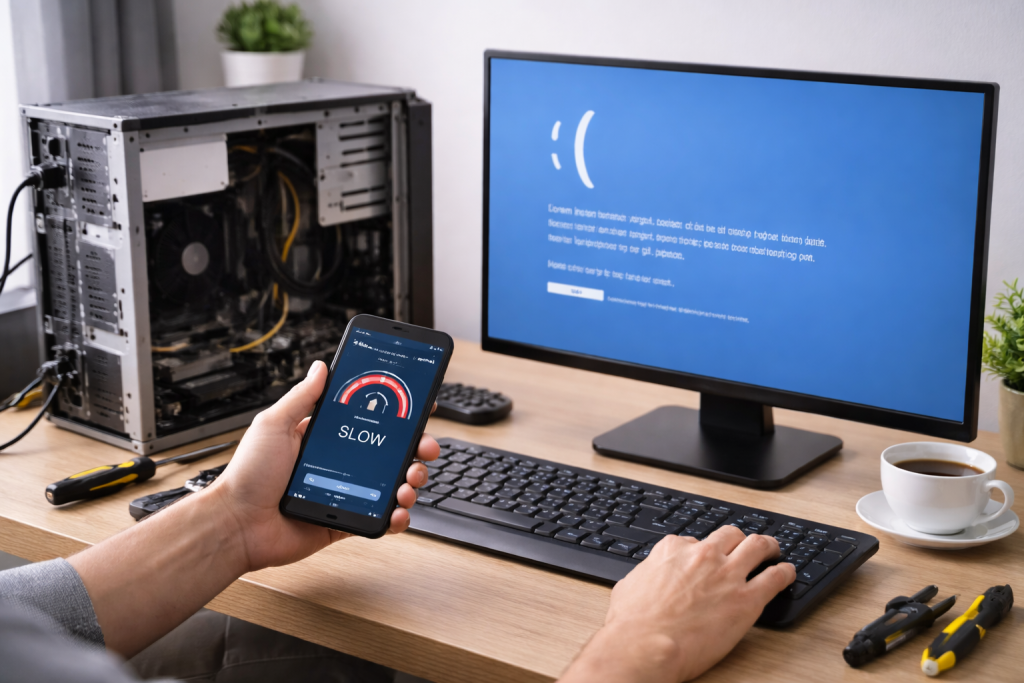
A computer that has slowed down can feel like a snail trying to cross a desert. The reasons for this slowdown are varied, often stemming from a combination of factors. One primary culprit is the accumulation of temporary files and junk data that your operating system and applications create during normal use. Over time, these files can occupy significant disk space and fragment your hard drive, making it harder for the system to access data efficiently. Think of your hard drive like a library; if books are scattered randomly, it takes much longer to find what you need compared to an organized shelf.
Another significant contributor to slow speeds is the presence of too many programs running simultaneously. Each program consumes system resources, such as Random Access Memory (RAM) and processing power. When many applications are open, especially resource-intensive ones like modern web browsers with numerous tabs or demanding software, the available resources can become stretched thin, leading to a noticeable lag. This is akin to trying to juggle too many balls; eventually, one is bound to drop.
Furthermore, hardware limitations can play a crucial role. Older or less powerful processors, insufficient RAM, or a slow hard drive can bottleneck your system, preventing it from keeping up with modern software demands. Consider trying to run a high-definition movie on a player designed for silent films; the technology simply isn’t equipped for the task. Malware and viruses also actively consume system resources, often running hidden processes that divert power away from legitimate applications and slow down your computer significantly.
Contents
- 0.1 Software-Related Performance Degradation
- 0.2 Hardware Factors Affecting Speed
- 0.3 The Impact of Malware and Viruses
- 0.4 Maintenance and Its Role in Speed
- 0.5 Software Optimization and Cleanup
- 0.6 Managing Startup Programs
- 0.7 Disk Defragmentation and Optimization
- 0.8 Hardware Upgrades for Performance Gains
- 0.9 Regular Software Updates
- 0.10 Common Causes of Blue Screen Errors
- 0.11 Solutions for Common Blue Screen Errors
- 0.12 Initial Steps and Information Gathering
- 0.13 Using System Restore and Safe Mode
- 0.14 Verifying Hardware Integrity
- 0.15 Driver and Software Conflicts
- 0.16 Advanced Troubleshooting and Diagnostics
- 0.17 Routine Software Maintenance
- 0.18 Safe Computing Habits
- 0.19 Physical Maintenance of Hardware
- 0.20 Managing Power Settings and Sleep Modes
- 0.21 Recognizing Symptoms of Hardware Failure
- 0.22 Diagnostic Tools and Techniques
- 0.23 Common Hardware Fixes and Replacements
- 0.24 Antivirus and Anti-Malware Software
- 0.25 System File Checker and DISM
- 0.26 Registry Cleaners and Optimization Tools
- 0.27 Driver Updaters (with caution)
- 0.28 Resetting or Reinstalling the Operating System
- 0.29 The Importance of Antivirus Software
- 0.30 Recognizing and Avoiding Phishing Attempts
- 0.31 Secure Browsing Practices
- 0.32 Firewall and Network Security
- 0.33 Software Updates are Crucial
- 0.34 Identifying the Scope of the Problem
- 0.35 Checking Physical Connections
- 0.36 Restarting Network Equipment
- 0.37 Testing Different Network Configurations
- 0.38 Using Network Diagnostic Tools
- 0.39 Complex or Persistent Issues
- 0.40 Data Recovery Needs
- 0.41 When Hardware is Suspect and Not Easily Accessible
- 0.42 Security Breaches and Suspected Malware Infections
- 0.43 Lack of Time or Technical Expertise
- 1 FAQs
- 1.1 1. What are some common causes of slow computer speeds?
- 1.2 2. How can I improve my computer’s performance?
- 1.3 3. What are some common causes of blue screen errors, and how can I fix them?
- 1.4 4. How can I prevent common computer problems through maintenance and best practices?
- 1.5 5. When should I seek professional help from a computer technician?
Software-Related Performance Degradation
Software issues are a common source of sluggishness. An operating system that has been in use for an extended period without a clean installation can accumulate a backlog of registry errors and outdated configuration files. These can act like cobwebs in a house, gradually hindering smooth operation. The operating system itself might also be outdated or have underlying bugs that impact performance.
Applications themselves can contribute to slowdowns. Poorly written software, or software that hasn’t been updated in a while, might not be optimized for current hardware or operating systems. This can lead to inefficient resource usage. Background processes are another area of concern. Many applications install services that run in the background even when the application is not actively being used, and these can silently consume valuable system resources.
Hardware Factors Affecting Speed
When discussing hardware, the hard drive is a key component. Traditional Hard Disk Drives (HDDs) have moving parts and are inherently slower than Solid State Drives (SSDs). As an HDD ages, its performance can degrade. Fragmentation, as mentioned earlier, is a particular issue for HDDs. An SSD, lacking moving parts, offers significantly faster data access, making a substantial difference in overall system responsiveness.
RAM, or Random Access Memory, is your computer’s short-term memory. If you don’t have enough RAM for the tasks you’re performing, your computer will resort to using the hard drive as virtual memory, which is much slower. This is like trying to remember a long list of items by writing them down on a tiny notepad instead of having a large whiteboard.
The processor, or CPU, is the brain of your computer. While it can’t be upgraded as easily as RAM or storage, an older or lower-end CPU will simply struggle to handle demanding tasks, leading to a performance bottleneck regardless of other component capabilities.
The Impact of Malware and Viruses
Malicious software, including viruses, spyware, and adware, can severely impact computer performance. These programs are designed to operate stealthily, often consuming significant processing power and network bandwidth in the background. They can also corrupt system files, interfere with normal operations, and even lock down your system. Imagine a parasite that drains the energy from its host; malware does a similar job on your computer’s resources.
Maintenance and Its Role in Speed
Regular maintenance is crucial for maintaining optimal computer speed. This includes routine disk cleanup to remove temporary files, defragmenting traditional hard drives, and uninstalling unused programs that consume resources and disk space. Keeping your operating system and software updated is also vital, as updates often include performance improvements and security patches that can prevent slowdowns caused by vulnerabilities.
To combat sluggishness, a multi-pronged approach is often most effective. Many improvements can be made through software adjustments and diligent maintenance.
Software Optimization and Cleanup
A good starting point is to perform a thorough disk cleanup. Operating systems have built-in tools for this purpose, which can remove temporary internet files, downloaded program files, and other forms of digital debris. Regularly emptying your Recycle Bin also frees up disk space. For more advanced cleanup, third-party utilities can assist, but it is important to use reputable programs and understand their functions.
Uninstalling programs that are no longer needed is another vital step. These programs not only occupy disk space but can also install background services that run automatically. Use the operating system’s Add or Remove Programs (or Apps & Features) utility to manage installed software.
Managing Startup Programs
Many applications are configured to launch automatically when your computer starts. While convenient for some programs, a long list of startup items can significantly increase boot times and consume resources in the background. Most operating systems allow you to manage these startup programs. Disabling unnecessary items can lead to a faster startup and a more responsive system once it’s running. Consider which programs you truly need to be active the moment your computer powers on.
Disk Defragmentation and Optimization
For computers using traditional Hard Disk Drives (HDDs), disk defragmentation is a key maintenance task. Over time, files become spread across different locations on the disk, slowing down access times. Defragmentation reorganizes these scattered file pieces, bringing them closer together. Modern operating systems often perform this automatically on a schedule, but manual checks can be beneficial. Note that Solid State Drives (SSDs) do not require defragmentation, and attempting to do so can reduce their lifespan. Instead, SSDs benefit from TRIM commands, which are typically managed by the operating system.
Hardware Upgrades for Performance Gains
If software optimization and maintenance do not yield satisfactory results, hardware upgrades can offer a significant boost. Adding more RAM is often one of the most cost-effective upgrades for improving overall system responsiveness. If your computer feels like it’s constantly struggling with multitasking or opening large files, more RAM can provide a welcome relief.
Upgrading to a Solid State Drive (SSD) from a traditional Hard Disk Drive (HDD) is another impactful upgrade. The speed difference in boot times, application loading, and file access is substantial, transforming the perceived performance of an older computer.
Regular Software Updates
Keeping your operating system and all installed software updated is essential. Updates often contain performance enhancements, bug fixes, and security patches. A well-maintained and up-to-date system is generally more stable and performs better.
The dreaded Blue Screen of Death (BSOD), or a similar blue screen error, is a critical system failure that halts your computer’s operation and displays diagnostic information. These errors, while alarming, are a sign that Windows has encountered a problem it cannot recover from on its own and has shut down to prevent further damage.
Common Causes of Blue Screen Errors
Blue screen errors can stem from various issues, but many fall into a few main categories. Faulty hardware is a frequent offender. The problem can include failing RAM modules, overheating components (like the CPU or graphics card), or issues with other internal hardware components, such as the hard drive or motherboard. Think of it as a vital organ in your computer, suddenly stopping its function.
Driver issues are another significant cause. Drivers are software that allows your operating system to communicate with hardware devices. If a driver is outdated, corrupted, or incompatible with your system, it can lead to system instability and blue screen errors. This is like trying to speak a language your computer’s components don’t understand.
Software conflicts can also trigger blue screens. This can occur when two or more programs or applications attempt to access the same system resource in incompatible ways, or when a newly installed program or update causes a conflict with existing system files. Memory corruption, whether due to hardware problems or software errors, can also manifest as blue screens.
Solutions for Common Blue Screen Errors
When faced with a blue screen, the first step is often to note down any error codes or messages displayed on the screen. These codes act as clues, providing specific information about the nature of the problem. Search online for these codes for potential solutions.
If the blue screen appeared after a recent hardware change or software installation, that is often the area to investigate first. Try uninstalling the recently added software or, if possible, reverting to a previous hardware configuration.
If hardware is suspected, running diagnostic tools can be helpful. Many computers come with built-in hardware diagnostics, or you can download external tools. Testing individual RAM modules or checking component temperatures can isolate potential hardware failures. Ensure your computer’s cooling system is functioning correctly and that vents are not blocked, as overheating is a common cause of instability.
Updating or reinstalling drivers for critical components like the graphics card, network adapter, and motherboard can resolve many blue screen issues related to driver conflicts. It’s important to download drivers from the manufacturer’s official website.
Troubleshooting a blue screen error requires a systematic approach to identify the root cause and implement the correct fix.
Initial Steps and Information Gathering
When a blue screen occurs, observe the information presented. The stop code (e.g.) and sometimes a related file name (e.g.) are invaluable for diagnosis. Write these down if possible, or take a clear picture.
The most common advice for immediate action is to restart your computer. If the blue screen is a one-time event, it might not be a persistent issue. However, if it recurs, further investigation is necessary.
Using System Restore and Safe Mode
System Restore is a Windows feature that allows you to revert your system to a previous state. If a blue screen began occurring after a software installation or update, using System Restore to go back to a time when the system was stable can often resolve the problem. This is like rewinding a faulty recording to a point before the distortion.
Booting into Safe Mode is another crucial troubleshooting step. Safe Mode loads Windows with a minimal set of drivers and services. If your computer boots successfully into Safe Mode without encountering a blue screen, it strongly suggests that a third-party driver or program is the cause of the problem. From Safe Mode, you can then proceed to uninstall recent software or drivers.
Verifying Hardware Integrity
Faulty RAM is a frequent culprit behind blue screen errors. Windows includes a built-in Memory Diagnostic tool that can scan your RAM for errors. You can access this by searching for “Windows Memory Diagnostic” in the Start menu. Running this tool will require a restart, and the scan can take some time. If errors are detected, one or more RAM modules likely need to be replaced.
Overheating can also lead to system instability. Ensure that your computer’s cooling fans are working correctly and that air vents are clear of dust and obstructions. Monitoring CPU and GPU temperatures using specialized software can help identify if overheating is a problem.
Driver and Software Conflicts
If Safe Mode indicates a software or driver issue, focus on those areas. Uninstall recently installed applications one by one, restarting your computer after each uninstallation to see if the blue screen reappears. Similarly, if you recently updated any drivers, try rolling them back to a previous version through Device Manager. If a specific driver consistently causes issues, it may need to be replaced or updated from the manufacturer’s website.
Advanced Troubleshooting and Diagnostics
For more persistent or complex blue screen errors, you may need to use more advanced tools. The Reliability Monitor can provide a timeline of system events, including crashes and errors, which can help pinpoint when a problem began. Command-line tools like sfc /scannow System File Checker can scan and repair corrupted system files.
Proactive maintenance and good user habits are the most effective ways to avoid encountering common computer problems, including slow performance and unexpected errors.
Routine Software Maintenance
Regularly run the built-in disk cleanup utilities on your operating system. This removes unnecessary temporary files that can accumulate and slow down your system. Uninstall programs you no longer use. These applications not only take up disk space but can also run background processes that consume resources.
Keep your operating system updated. Windows updates often include performance improvements, security patches, and bug fixes that can prevent issues before they arise. Similarly, ensure that your frequently used applications are also updated to their latest versions.
Safe Computing Habits
Be cautious about the websites you visit and the files you download. Only download software from reputable sources. Avoid clicking on suspicious links or opening email attachments from unknown senders, as these are common vectors for malware. Consider using an ad blocker and a reputable antivirus program.
Regularly back up your important data. This ensures that even if a significant system failure occurs, you will not lose your valuable files. Cloud storage services and external hard drives are both effective backup solutions.
Physical Maintenance of Hardware
Keep your computer physically clean. Dust can accumulate in vents and on components, leading to overheating, which can cause performance issues and hardware failures. Periodically clean your computer case, keyboard, and monitor. Ensure that your computer has adequate ventilation and is not placed in an enclosed space that restricts airflow.
Managing Power Settings and Sleep Modes
Incorrectly configured power settings can sometimes lead to unexpected behavior or reduce performance. Familiarize yourself with your operating system’s power management options. While sleep modes are designed to save energy, ensure that they are functioning as expected and not causing instability.
Hardware issues can manifest in various ways, from complete system failure to subtle performance degradations. Identifying the faulty component is key to resolving the problem.
Recognizing Symptoms of Hardware Failure
Symptoms of hardware failure can be diverse. For RAM issues, you might experience frequent blue screen errors, random crashes, or data corruption. A failing hard drive can lead to slow performance, strange noises (clicking or grinding), or the inability to boot into the operating system. Overheating can cause your computer to shut down unexpectedly during demanding tasks or lead to reduced performance as the system throttles its components to prevent damage.
A malfunctioning graphics card can result in visual artifacts on your screen, distorted images, or no display output at all. Issues with the power supply unit (PSU) can cause your computer to fail to turn on, restart randomly, or experience instability under load.
Diagnostic Tools and Techniques
Operating systems often include built-in diagnostic tools. For example, Windows has the Device Manager, which allows you to check the status of hardware devices and identify any that are reporting errors. The Windows Memory Diagnostic tool, as mentioned earlier, is crucial for testing RAM.
Third-party diagnostic software can provide more in-depth analysis of specific hardware components, such as hard drive health checks (e.g., CrystalDiskInfo) or CPU and GPU stress tests (e.g., Prime95, FurMark). These tools push hardware to its limits to reveal potential instability or errors.
Common Hardware Fixes and Replacements
For many hardware issues, the solution involves replacing the faulty component. This could mean replacing a failing RAM module, upgrading to a new hard drive or SSD, or even replacing a malfunctioning power supply. If overheating is the problem, cleaning fans and heat sinks or replacing thermal paste on the CPU can resolve the issue.
If the problem is with an external peripheral, try connecting it to a different USB port or a different computer to rule out issues with the peripheral itself or the connection. For internal components, if you are not comfortable with hardware replacement, seeking professional assistance is recommended.
Many computer problems, even those that seem hardware-related, can have underlying software causes or be resolved with software-based solutions.
Antivirus and Anti-Malware Software
Protecting your computer from viruses and malware is a primary software solution. Install a reputable antivirus and anti-malware program and keep it updated. Perform regular scans to detect and remove any malicious software that may have infiltrated your system. These programs not only protect your data but also prevent performance degradation caused by unwanted malicious processes.
System File Checker and DISM
For issues related to corrupted system files, Windows provides the System File Checker (SFC) tool. Running sfc /scannow from an elevated command prompt scans all protected system files and replaces any corrupted ones with a cached copy. The Deployment Image Servicing and Management (DISM) tool can be used to repair the Windows component store, which SFC relies on. Running DISM commands DISM /Online /Cleanup-Image /RestoreHealth can address more complex corruption issues that SFC alone cannot fix.
Registry Cleaners and Optimization Tools
The Windows Registry is a database that stores configuration settings for the operating system and applications. Over time, it can become cluttered with outdated or erroneous entries, which can lead to system instability and performance issues. Registry cleaner tools can scan and remove these problematic entries. However, it is crucial to use reputable registry cleaners and to create a backup of the registry before making any changes, as incorrect modifications can cause serious system problems.
Driver Updaters (with caution)
While manually updating drivers from manufacturer websites is generally the safest approach, some third-party driver updater tools can help automate the process. However, these tools should be used with caution, as they can sometimes install incorrect or incompatible drivers, leading to new problems. Always ensure you are using a trusted driver updater and are aware of the potential risks.
Resetting or Reinstalling the Operating System
As a last resort for stubborn software issues, resetting or completely reinstalling the operating system can provide a clean slate. Resetting Windows allows you to keep your files while reinstalling the operating system, effectively removing problematic applications and settings. A clean installation involves formatting the hard drive and installing a fresh copy of Windows, which is the most thorough method for resolving persistent software-related problems.
Preventing malware infections is far more efficient than dealing with their consequences. A multi-layered approach to security is recommended.
The Importance of Antivirus Software
A robust and up-to-date antivirus program is the cornerstone of malware protection. Choose a well-regarded antivirus solution and ensure that its virus definitions are updated regularly. Schedule regular full system scans to detect and remove any threats that may have bypassed real-time protection.
Recognizing and Avoiding Phishing Attempts
Phishing is a common method used by cybercriminals to trick users into revealing sensitive information or downloading malware. Be wary of unsolicited emails, text messages, or social media messages that request personal information, ask you to click on suspicious links, or urge you to download attachments. Legitimate organizations typically do not ask for sensitive information via email.
Secure Browsing Practices
Use a secure web browser and keep it updated. Consider using browser extensions that enhance security, such as ad blockers and tracker blockers. Be cautious about the websites you visit. Look for the padlock icon in the address bar, which indicates a secure, encrypted connection (HTTPS). Avoid downloading files from untrusted websites.
Firewall and Network Security
Your operating system’s built-in firewall plays a vital role in protecting your computer from unauthorized network access. Ensure it is enabled. If you are using a wireless network, secure it with a strong password and use WPA2 or WPA3 encryption. Avoid connecting to unsecured public Wi-Fi networks for sensitive activities like online banking.
Software Updates are Crucial
Many malware infections exploit vulnerabilities in outdated software. Regularly update your operating system, web browser, and other applications. This includes Java, Adobe Flash Player (though increasingly less common), and PDF readers. These updates often patch security holes that malware could otherwise exploit.
A stable and fast internet connection is essential for modern computing. When this falters, it can cause significant disruption.
Identifying the Scope of the Problem
Determine if the issue is isolated to your computer or affects multiple devices on your network. If other devices can connect to the internet, the problem likely lies with your specific computer’s network configuration or hardware. If no devices can connect, the issue is more likely with your modem, router, or your Internet Service Provider (ISP).
Checking Physical Connections
Begin by verifying all physical connections. Ensure that the Ethernet cable connecting your modem to your router and your computer to the router (if using a wired connection) is securely plugged in at both ends. If you are using Wi-Fi, ensure that your wireless adapter is enabled and that you are connected to the correct network.
Restarting Network Equipment
A simple restart of your modem and router can often resolve connectivity issues. Unplug the power from your modem, wait for about 30 seconds, then plug it back in. Once the modem’s lights indicate it is online, do the same for your router. Wait for both devices to fully boot up before testing your connection.
Testing Different Network Configurations
If you are using Wi-Fi, try connecting your computer directly to the router using an Ethernet cable. If this resolves the issue, there might be a problem with your Wi-Fi signal strength or configuration. If you are using a wired connection and suspect an issue with the Ethernet cable, try a different cable.
Using Network Diagnostic Tools
Your operating system provides built-in network troubleshooting tools. In Windows, you can right-click on the network icon in the system tray and select “Troubleshoot problems.” These tools can often automatically detect and fix common network issues, such as IP address conflicts or DNS problems.
While many common computer problems can be resolved with self-troubleshooting, there are times when professional assistance is necessary.
Complex or Persistent Issues
If you have attempted various troubleshooting steps and are still experiencing significant problems, or if the issue is recurring despite your efforts, it may be time to seek professional help. This is especially true for complex hardware failures or persistent software conflicts that you cannot diagnose.
Data Recovery Needs
If you have lost critical data due to a hard drive failure or accidental deletion, a professional data recovery service may be able to retrieve your files. This often requires specialized equipment and expertise.
When Hardware is Suspect and Not Easily Accessible
For issues that strongly suggest a hardware problem but involve components that are difficult to access or replace (e.g., a motherboard issue or a liquid-damaged component), it is often best to let a technician handle the diagnosis and repair. Attempting such repairs without proper knowledge can lead to further damage.
Security Breaches and Suspected Malware Infections
If you suspect your computer has been compromised by a serious malware infection or a security breach, a professional IT technician can help ensure your system is thoroughly cleaned and secured. They can also advise on measures to prevent future incidents.
Lack of Time or Technical Expertise
Ultimately, if you lack the time, technical knowledge, or confidence to diagnose and fix a computer problem yourself, calling a computer technician is a practical solution. They have the experience and tools to solve issues efficiently, saving you time and potential frustration.
FAQs
1. What are some common causes of slow computer speeds?
Some common causes of slow computer speeds include a lack of available memory, too many programs running at once, a fragmented hard drive, or a virus or malware infection.
2. How can I improve my computer’s performance?
You can improve your computer’s performance by regularly cleaning up your hard drive, uninstalling unnecessary programs, updating your operating system and drivers, adding more RAM, and using a reputable antivirus program to scan for and remove malware.
3. What are some common causes of blue screen errors, and how can I fix them?
Common causes of blue screen errors include hardware or driver issues, overheating, or corrupted system files. You can fix them by updating your drivers, checking for hardware issues, running a memory diagnostic, or performing a system restore.
4. How can I prevent common computer problems through maintenance and best practices?
You can prevent common computer problems by regularly updating your operating system and software, running regular virus scans, cleaning up your hard drive, and avoiding clicking on suspicious links or downloading unknown files.
5. When should I seek professional help from a computer technician?
You should seek professional help from a computer technician if you are unable to resolve a computer problem on your own, if you suspect a hardware issue, if your computer is consistently crashing or freezing, or if you are experiencing persistent internet connection problems.

Sarah Khan is a technology enthusiast and the admin of ProTechTuto. Her goal is to provide clear, practical, and easy-to-understand tech guides for beginners, helping them build strong digital skills with confidence.