
Understanding BIOS: A Layman’s Guide to the Inner Workings of Your Computer
Think of BIOS as your computer’s fundamental instruction manual. It’s the first software that runs when you turn on your computer, and it’s essential for getting your system up and running. Without a BIOS, your computer would be like a car without an ignition system—it can’t even start.
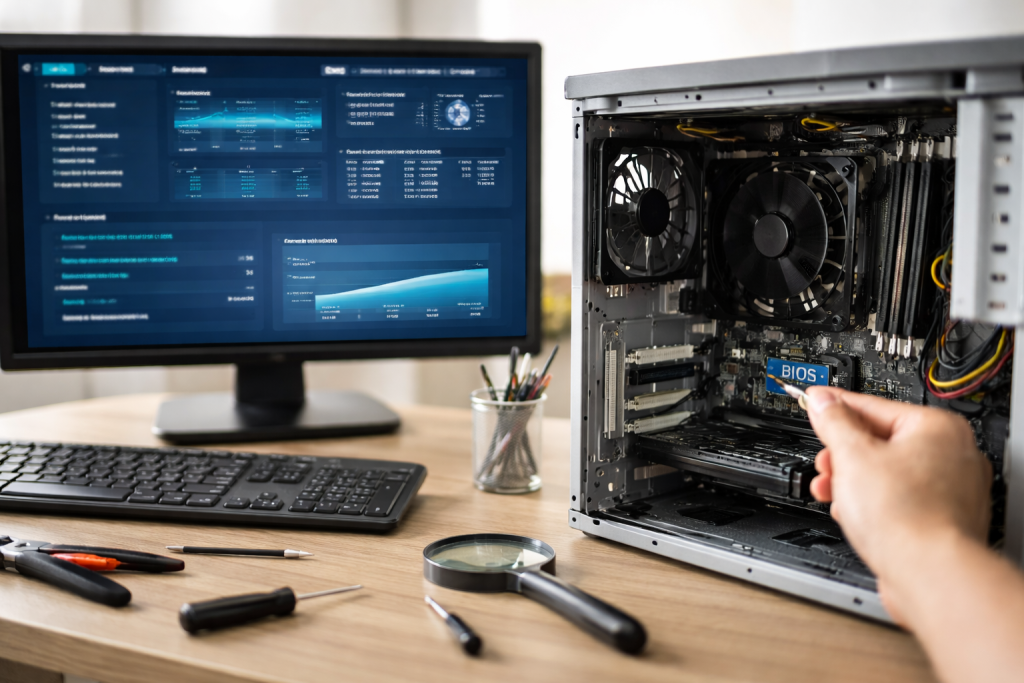
BIOS stands for Basic Input/Output System. It’s a type of firmware, which is software permanently programmed into a hardware chip on your computer’s motherboard. This contrasts with regular software, like your web browser or word processor, which is stored on your hard drive and loaded into memory when you need it. BIOS, however, is always present and ready to go the moment power is applied.
Its primary importance lies in its role as the initial bridge between your hardware components and the operating system. When you power on your PC, it’s the BIOS that wakes up all the essential parts—the processor, memory, hard drives, keyboard, and more—checks if they are functioning correctly, and then hands over control to the operating system, such as Windows or macOS. This process, known as booting up, is entirely orchestrated by the BIOS.
Contents
- 0.1 The Motherboard’s First Responder
- 0.2 The Foundation for the Operating System
- 0.3 The Genesis of IBM PC BIOS
- 0.4 The Rise of Standardized BIOS
- 0.5 Dealing with Limitations: Introducing Plug and Play
- 0.6 The Need for Greater Capabilities
- 0.7 Power-On Self-Test (POST)
- 0.8 Locating and Loading the Boot Loader
- 0.9 Handing Over the Reins
- 0.10 Hardware Initialization
- 0.11 Providing Basic Input and Output Services
- 0.12 Managing Hardware Resources
- 0.13 Storing System Configuration
- 0.14 The Firmware Layer
- 0.15 Bridging Hardware and the Operating System
- 0.16 Interrupt Handling
- 0.17 Why Update BIOS?
- 0.18 How to Update BIOS
- 0.19 Computer Won’t Power On
- 0.20 POST Beep Codes or Error Messages
- 0.21 Incorrect System Date and Time
- 0.22 Boot Order Issues
- 0.23 Accessing the BIOS Setup
- 0.24 Navigating the Utility
- 0.25 Modifying Settings
- 0.26 Overcoming BIOS Limitations
- 0.27 Key Advantages of UEFI
- 0.28 Transitioning to UEFI
- 0.29 Increased Integration and Smarter Firmware
- 0.30 Enhanced Security Features
- 0.31 Cloud and Remote Management
- 0.32 Beyond the Boot:
- 1 FAQs
The Motherboard’s First Responder
The motherboard is the central hub of your computer. It’s a complex circuit board that connects all the different components. The BIOS chip is soldered directly onto this motherboard. When you press the power button, electricity flows to the motherboard, and the BIOS chip is the first thing that receives this signal. It’s like the initial spark that ignites the engine.
The Foundation for the Operating System
The operating system is the software you interact with daily. It manages all your applications and provides a user interface. However, the operating system cannot communicate directly with the low-level hardware. BIOS acts as an intermediary, providing the foundational drivers and routines that allow the operating system to recognize and control the hardware. Without this bridge, the operating system would be lost, unable to understand or utilize the computer’s physical components.
The concept of BIOS has been around since the early days of personal computing. IBM’s introduction of the Personal Computer (PC) in 1981 and its open architecture laid the groundwork for what would become the standard BIOS.
The Genesis of IBM PC BIOS
In its original form, BIOS was very basic. It contained simple routines for communicating with essential hardware like the keyboard, floppy disk drive, and a basic display adapter. This information was crucial for loading the operating system from a floppy disk, which was the primary storage medium at the time. This early BIOS was largely proprietary and specific to IBM machines.
The Rise of Standardized BIOS
As the PC market expanded, companies like Phoenix Technologies and AMI (American Megatrends Inc.) began developing their own BIOS implementations. These became widely adopted by various hardware manufacturers, leading to a de facto standard across the industry. This allowed for greater compatibility and made it easier for software developers to create applications that would run on a wide range of PCs.
Dealing with Limitations: Introducing Plug and Play
As computers became more complex with more devices being added, manually configuring hardware settings became cumbersome. The introduction of Plug and Play (PnP) technology, initially supported by BIOS, aimed to simplify this. PnP allowed hardware devices to inform the BIOS about their resource needs (like memory addresses and interrupt requests), and the BIOS would then assign these resources automatically, reducing conflicts between devices.
The Need for Greater Capabilities
Over time, the limitations of traditional BIOS became apparent. The increasing size of hard drives and the need for faster boot times pushed the boundaries of what BIOS could handle. The 16-bit architecture of traditional BIOS also presented limitations in accessing larger amounts of memory and supporting more advanced hardware features. This led to the development of a successor.
The boot-up process is a critical sequence of events that every computer undergoes when it’s powered on. BIOS is the conductor of this orchestra, ensuring each instrument plays its part at the right time.
Power-On Self-Test (POST)
When you press the power button, the OS initiates a Power-On Self-Test (POST). This is like a quick check-up by the system’s doctor. The BIOS checks if essential hardware components like the CPU, RAM, graphics card, and keyboard are present and functioning. If it detects an issue, it will often signal this with a series of audible beeps (a beep code) or display an error message on the screen, depending on the severity and type of hardware problem. These codes act as diagnostic clues to help identify what might be wrong.
Locating and Loading the Boot Loader
After the POST, BIOS needs to find where to load the operating system from. It checks a predefined sequence of boot devices, which you can usually configure in the BIOS setup. This sequence typically includes options like optical drives, USB drives, hard disk drives, and network boot options. Once it finds a bootable device, BIOS reads the boot loader—a small program responsible for initializing the operating system.
Handing Over the Reins
The boot loader then takes over from the BIOS. Its job is to load the core components of the operating system into memory and then pass control of the computer to the operating system. At this point, the user interface of your operating system, such as the Windows desktop or macOS login screen, will appear, and the BIOS has completed its primary boot-up function.
Beyond its role in booting, BIOS performs several fundamental tasks that keep your computer running smoothly. These functions are often transparent to the user but are vital.
Hardware Initialization
As mentioned, BIOS initializes and configures all the essential hardware components. This includes setting up the system clock, configuring memory, and making sure the basic communication channels between the CPU and other devices are open. It provides the initial instructions for these components to understand how to interact.
Providing Basic Input and Output Services
BIOS provides a set of essential software routines that allow the operating system to communicate with basic hardware devices. For example, it handles sending characters to the screen and receiving input from the keyboard. These are low-level functions, meaning they are very close to the hardware itself.
Managing Hardware Resources
BIOS is responsible for allocating specific resources to hardware devices. This includes things like interrupt request lines (IRQs) and input/output (I/O) port addresses. Managing these resources ensures that different devices can communicate with the CPU without interfering with each other. This is akin to assigning each piece of equipment in a workshop its own workspace and tool.
Storing System Configuration
Some BIOS settings are user-configurable and are stored in a small, battery-backed memory chip on the motherboard called CMOS (Complementary Metal-Oxide-Semiconductor). This memory retains settings like the system date and time, boot order, and basic hardware configurations even when the computer is powered off. This is why your computer usually remembers the correct time and date.
The interaction between BIOS, hardware, and software is a layered process. BIOS acts as the bedrock upon which everything else is built.
The Firmware Layer
BIOS itself is firmware. It resides on a chip on the motherboard and is the first layer of logic that runs. It communicates directly with the hardware through dedicated circuitry and specific instructions embedded in its code.
Bridging Hardware and the Operating System
When the operating system loads, it uses the information and interfaces provided by the BIOS. For instance, when an application needs to display text on the screen, it doesn’t directly command the graphics card. Instead, it requests the operating system, which then uses the BIOS routines to send the information to the graphics hardware. This abstraction layer simplifies software development by hiding the complexities of the physical hardware.
Interrupt Handling
Hardware devices signal their need for attention from the CPU by sending interrupts. BIOS sets up the initial interrupt handling mechanism, directing these interrupts to the appropriate routines within BIOS or, once the operating system is loaded, to the operating system’s own interrupt handlers. This is how your computer knows, for example, that a key has been pressed on the keyboard.
While BIOS is a stable piece of firmware, it’s not static. Manufacturers occasionally release updates to improve performance, add support for new hardware, or fix bugs.
Why Update BIOS?
BIOS updates can offer several benefits:
- Improved hardware compatibility: New updates can ensure that your motherboard works correctly with newer processors, graphics cards, or other components.
- Enhanced performance: Sometimes, updates can optimize how the motherboard communicates with other components, leading to slight performance gains.
- Bug fixes: Updates can resolve stability issues or bugs that may have been discovered in previous versions of the BIOS.
- Security enhancements: In some cases, updates address security vulnerabilities.
How to Update BIOS
Updating BIOS is a process that requires caution. It involves rewriting the firmware on the BIOS chip.
Preparing for the Update
Before you begin, always ensure you have the correct BIOS version for your specific motherboard model. Downloading the wrong BIOS can render your motherboard unusable. You will typically download the update file from your motherboard manufacturer’s support website. It’s also advisable to have a stable power source, as an interruption during the update can be catastrophic.
The Update Process
Most modern motherboards offer a built-in utility within the BIOS setup environment itself to perform the update, often called “EZ Flash” or similar. You’ll usually save the update file to a USB drive, boot into the BIOS, select the update utility, and then point it to the file on the USB drive. The utility will then guide you through the process. It is crucial to follow the on-screen instructions precisely.
While BIOS is generally reliable, occasional issues can arise. Understanding common problems and their potential solutions can save you time and frustration.
Computer Won’t Power On
If your computer doesn’t show any signs of life when you press the power button, the issue might be with the power supply or the motherboard itself, rather than the BIOS. However, in some rare cases of corrupted BIOS, the system might refuse to POST.
POST Beep Codes or Error Messages
As mentioned, during POST, BIOS can signal errors using beep codes or on-screen messages. Consulting your motherboard manual will explain what specific beep patterns or error codes signify. These are invaluable diagnostic tools.
Incorrect System Date and Time
If your system’s date and time reset every time you power off your computer, the CMOS battery on the motherboard is likely depleted and needs replacing. This battery is small and disc-shaped.
Boot Order Issues
If your computer is not booting from the intended drive (e.g., your hard drive), you may need to access the BIOS setup to adjust the boot order. This essentially tells the computer which storage device to check first for the operating system.
The BIOS setup utility is a menu-driven interface that allows you to view and modify BIOS settings. You typically access it by pressing a specific key during the initial moments of booting up your computer.
Accessing the BIOS Setup
The key to enter BIOS setup varies by manufacturer. Common keys include Del “or.” The correct key is usually displayed briefly on the screen during the boot process, often stating “Press [Key] to enter Setup” or “Press [Key] for BIOS.”
Once inside, you’ll find various menus and options. These can include:
- System Information: Displays details about your CPU, RAM, and other hardware.
- Boot Settings: Controls the boot order and other boot-related options.
- Integrated Peripherals: Allows you to enable or disable on-board devices like sound cards or network adapters.
- Power Management: Configures power-saving features.
- Security Settings: Allows you to set a BIOS password or enable other security features.
Modifying Settings
It’s important to proceed with caution when changing BIOS settings. Incorrect configurations can lead to system instability or prevent your computer from booting. If you’re unsure about a setting, it’s best to leave it at its default value or consult your motherboard manual.
UEFI (Unified Extensible Firmware Interface) is the modern successor to traditional BIOS. While both serve the same fundamental purpose, UEFI offers significant advancements.
Overcoming BIOS Limitations
BIOS, with its 16-bit architecture, had limitations in addressing large amounts of memory and booting from drives larger than 2 GB. UEFI, designed with modern computing needs in mind, overcomes these limitations.
Key Advantages of UEFI
- Faster Boot Times: UEFI can initialize hardware more efficiently, leading to quicker boot sequences.
- Support for Larger Drives: UEFI fully supports drives exceeding 2TB, a necessity for modern storage capacities.
- Graphical Interface: Many UEFI implementations offer a more user-friendly, graphical interface with mouse support, making navigation easier than the text-based BIOS menus.
- Enhanced Security: UEFI includes features like Secure Boot, which helps prevent malicious software from loading during the boot process by verifying the digital signatures of boot loaders and drivers.
- Network Capabilities: UEFI can often include network stack capabilities, allowing for network booting and diagnostics without needing a separate operating system.
Transitioning to UEFI
Most modern computers come with UEFI pre-installed. While it can often emulate BIOS for backward compatibility, it represents a significant step forward in firmware technology. The transition from BIOS to UEFI has been a gradual one, driven by the need for more advanced features and capabilities in today’s computing environments.
While UEFI has largely replaced traditional BIOS, the evolution of firmware will continue. The trend is towards greater integration, security, and flexibility.
Increased Integration and Smarter Firmware
Future firmware will likely become even more integrated with hardware, offering deeper insights and more sophisticated control. Think of firmware that can proactively alert you to potential hardware failures or intelligently manage power consumption based on your usage patterns.
Enhanced Security Features
As cyber threats become more sophisticated, firmware security will remain a paramount concern. Expect continued development in areas like secure boot, hardware-based encryption, and more robust mechanisms for preventing firmware-level attacks.
Cloud and Remote Management
The concept of managing and updating firmware remotely will likely become more prevalent, especially in enterprise environments, simplifying maintenance and deployment.
Beyond the Boot:
While booting will remain a core function, firmware may take on more responsibilities in system management, diagnostics, and even initial setup of new devices, blurring the lines between firmware, operating systems, and hardware. The fundamental role of bridging hardware and software will endure, but the methods and capabilities will undoubtedly evolve to meet the demands of future technology.
FAQs
What is BIOS, and why is it important?
BIOS, or Basic Input/Output System, is a firmware that initializes and controls the computer’s hardware during the booting process. It is important because it provides the essential instructions for the computer to start up and load the operating system.
What is the history and evolution of BIOS?
BIOS has been a fundamental part of computer systems since the 1970s. It has evolved from simple read-only memory (ROM) chips to more complex flash memory, with advancements in functionality and compatibility with modern hardware.
How does BIOS interact with hardware and software?
BIOS interacts with hardware by providing low-level control and communication between the operating system and the computer’s components. It also interacts with software by providing a standardized interface for the operating system to access hardware functions.
Why are BIOS updates important, and how can they be performed?
BIOS updates are important for fixing bugs, improving compatibility, and enhancing system stability and security. They can be performed by downloading the latest BIOS firmware from the manufacturer’s website and following specific instructions for updating the BIOS.
What are some common BIOS issues, and how can they be troubleshot?
Common BIOS issues include boot failures, hardware recognition problems, and system instability. These can be troubleshooted by checking hardware connections, resetting BIOS settings, updating firmware, and seeking professional assistance if necessary.

Sarah Khan is a technology enthusiast and the admin of ProTechTuto. Her goal is to provide clear, practical, and easy-to-understand tech guides for beginners, helping them build strong digital skills with confidence.